Adding serial numbers to products and orders
Last updated
Serial numbers let you track individual physical units of a product from the moment they arrive in your warehouse, through picking & packing, onto shipping labels, and even when they come back as a return. This article explains everything you can do with serial numbers in ChannelDock.
Each scanned serial number is stored as a single item record that carries the serial number, an optional batch ID and an optional expiration date. That item is then linked to the delivery it arrived on and — once the unit is shipped — to the order product it belongs to. This is what makes a single unit traceable across its entire lifecycle in ChannelDock.
Enabling serial numbers for a product
To enable serial numbers for a product, go to the ‘All Products’ page, open the product, and in Settings, set ‘Use serial no.’ to ‘Yes’. Click Update Product Information to save.
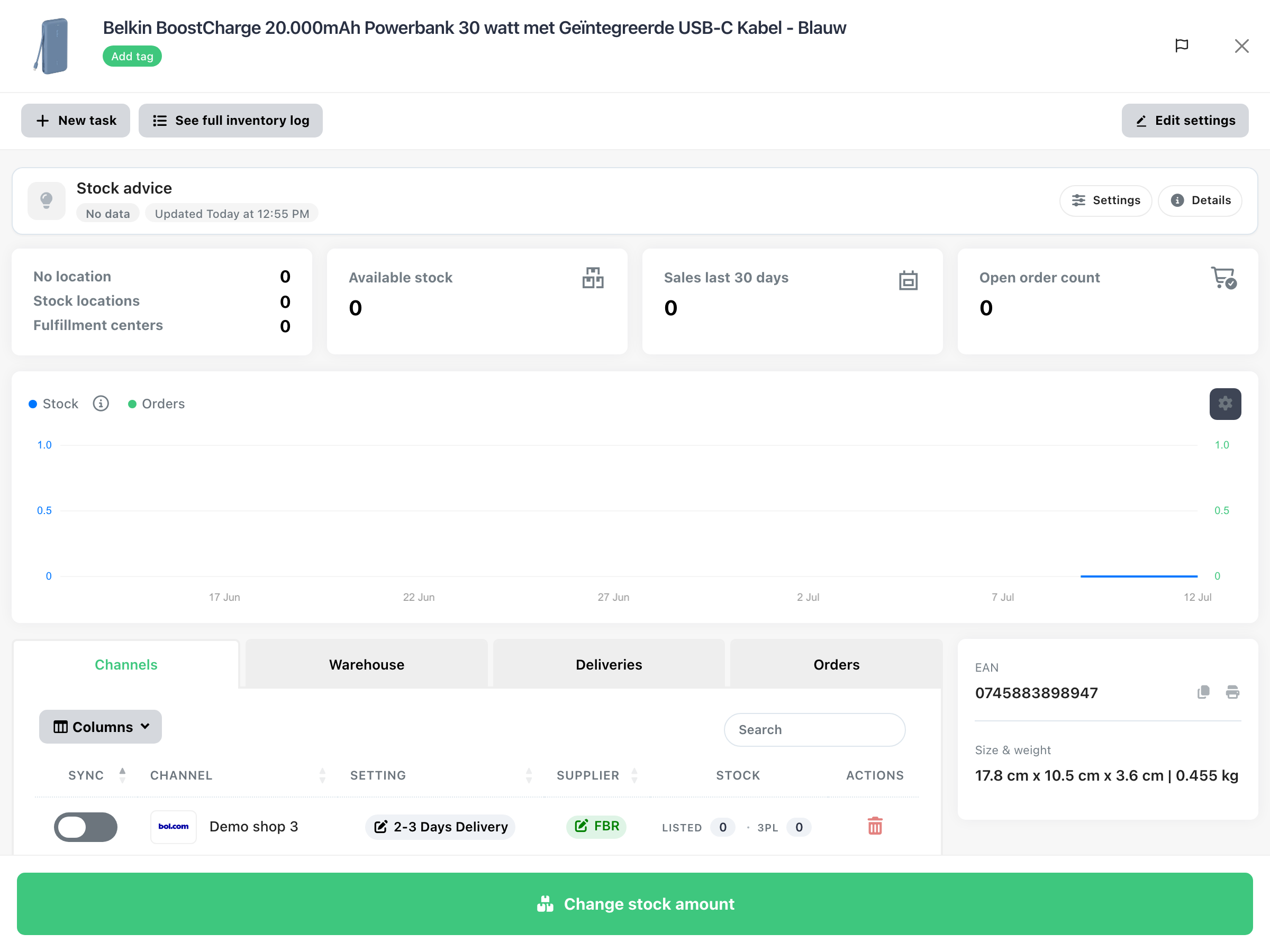
Bundles and serial numbers are mutually exclusive. A product can either be a bundle or use serial numbers, but not both — enabling one automatically disables the other. To track serial numbers for the individual components of a bundle, enable serial numbers on each child product of the bundle. During pick & pack, ChannelDock will then prompt you to scan a serial number for every child product in the bundle.
You can also enable serial numbers for multiple products at once using the bulk edit products feature, or set the require_serial_number column in the product Excel import.
Validating serial numbers with a regex pattern
When serial numbers are enabled, you can optionally define a serial number regex to enforce a specific format. This prevents typos and ensures that every scanned serial number matches the expected pattern.
- Open the product and scroll to the Settings section.
- In the Serial number regex field, enter a valid regular expression (without delimiters). Leave the field empty to allow any format.
- Click Update Product Information to save.
The regex is validated whenever a serial number is scanned — during deliveries, pick & pack, and (for fulfillment centers) on the native app. If a serial number does not match the pattern, it is rejected with the message “Serial number does not match the expected format” and the field is cleared.
Examples
| Regex | Allowed format |
|---|---|
^[A-Z0-9]{10}$ |
Exactly 10 uppercase letters and/or digits |
^[0-9]{8}$ |
Exactly 8 digits |
^SN-[A-Z]{4}-[0-9]{6}$ |
e.g. SN-ABCD-123456 |
| (empty) | Any format is accepted |
The regex pattern can also be imported in bulk via the product Excel import (column serial_number_regex), is sent in product webhook payloads, and is available in the native app API.
Receiving deliveries with serial numbers
When you receive a delivery, scan the serial numbers for each product. Along with serial numbers you can capture additional traceability data per delivery line:
- Expiration date (optional)
- Batch ID (optional)
- Serial numbers (one per item)
Open the delivery, click the Serial / Exp. date / Batch button on a delivery line to open the traceability modal, and scan or type the serial numbers. The number of serial numbers you add should match the received quantity. You can paste a space-separated list of serial numbers into the input to add several at once.
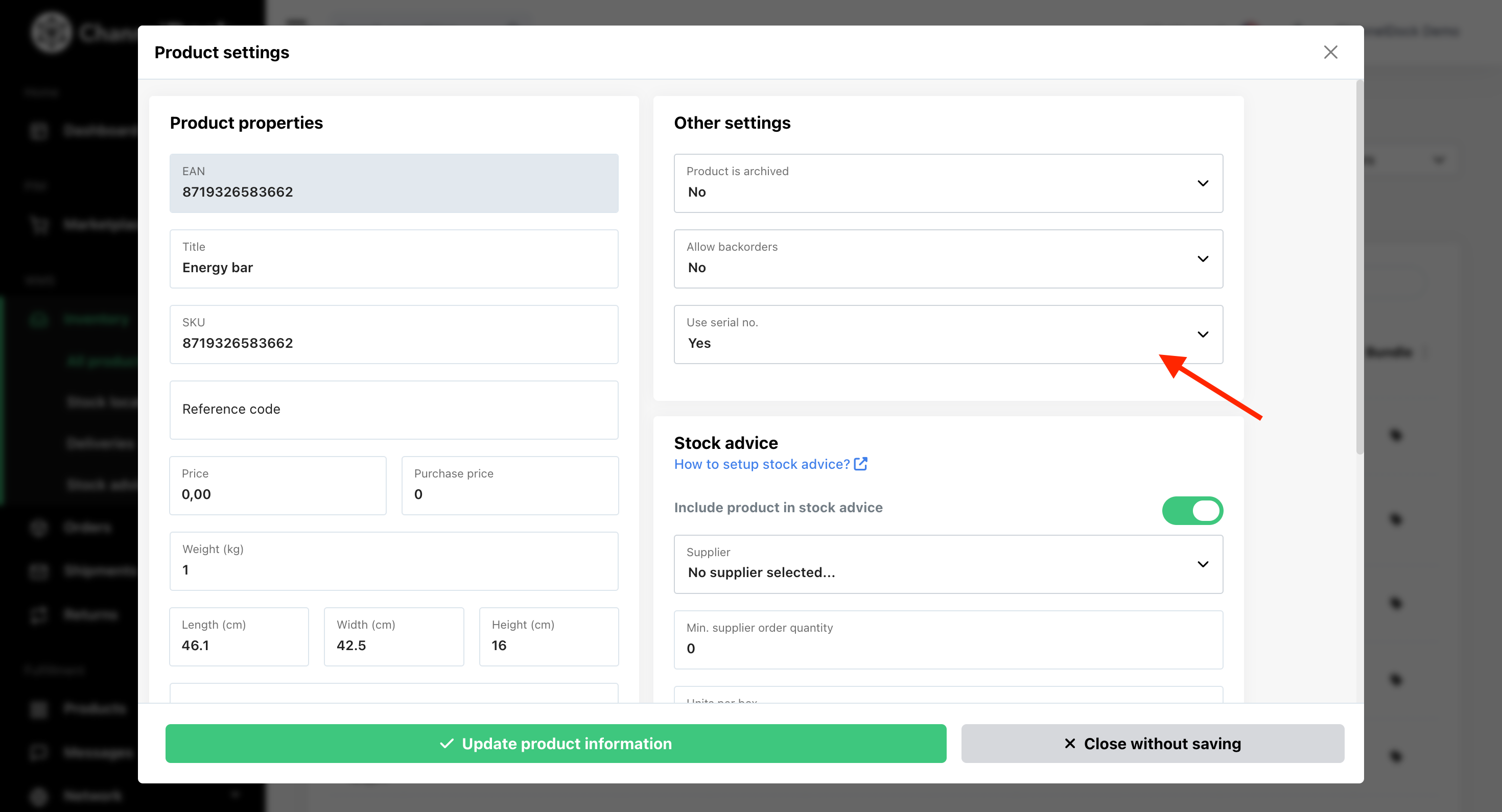
If a serial number regex is set on the product, every scanned value is validated against it before it is saved. Serial numbers scanned at this stage are pre-registered: they are linked to the delivery product but not yet to any order.
Once a delivery is marked as processed, the traceability data becomes read-only — the button changes to a view-only icon and the fields can no longer be edited.
Tracking orders with serial numbers
During the pick-and-pack process, scan the serial number of each item to link it to the order. ChannelDock handles two cases automatically:
- Pre-registered serial number: if the serial was already scanned when the delivery was received, the existing item is connected to the order line.
- New serial number: if the serial was not pre-registered, a new item record is created on the fly and linked to the order.
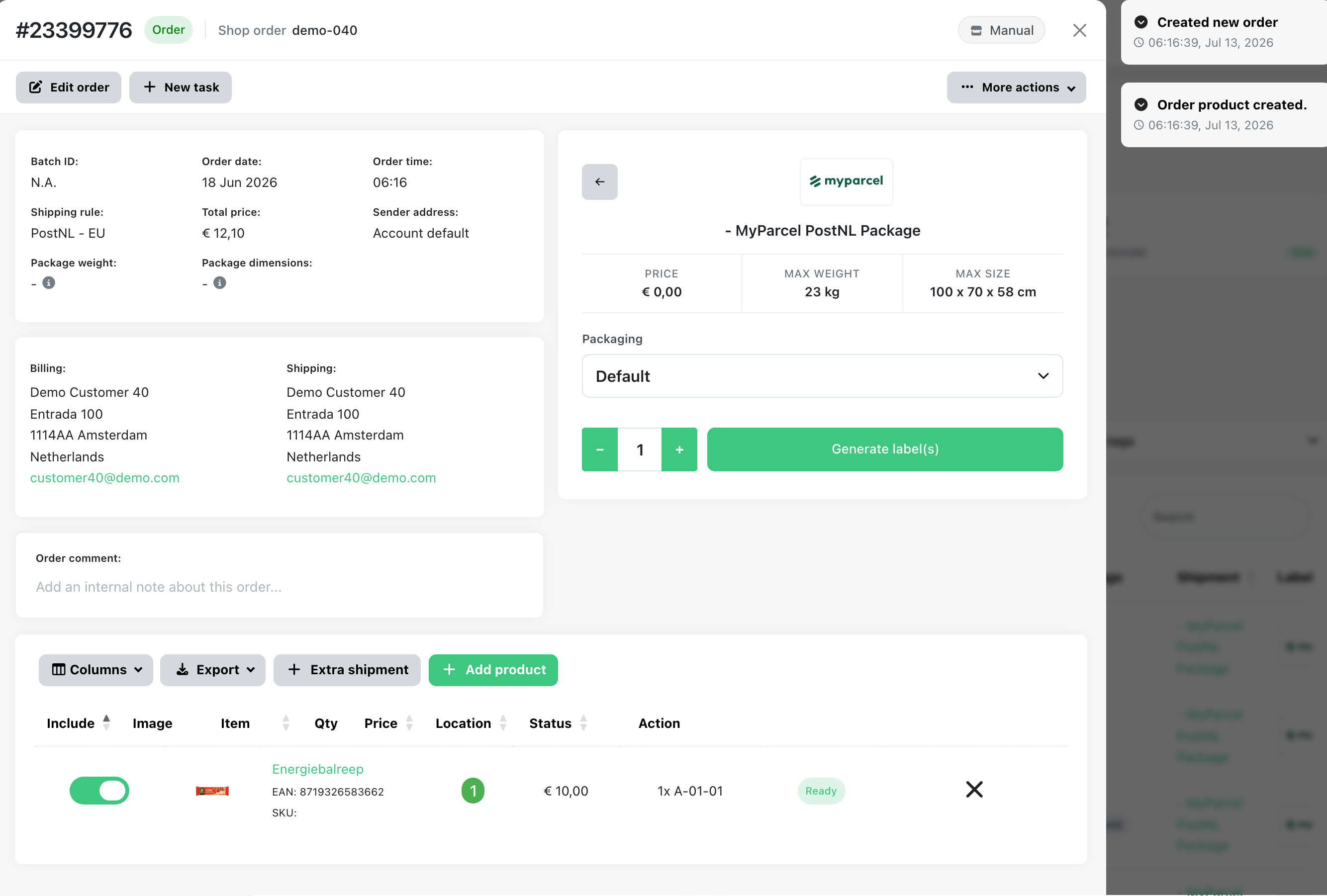
You must scan every required serial number before you can generate labels. If any serial number is missing, ChannelDock blocks the action with the message “Scan all serial numbers before continuing!”
Duplicate and mismatch prevention
- If you scan a serial number that is already linked to another order, you’ll see: “Serial number already in use for order: #…” and the field is cleared.
- If you scan a serial number that belongs to a different product, you’ll see: “Serial number from different product!”
- If you scan a serial number that does not match the product’s regex pattern, you’ll see: “Serial number does not match the expected format”
Clearing a serial number from an order either deletes the item (if it was created on the fly) or disconnects it (if it was pre-registered during inbound), leaving it free to be reused.
Go to the ‘All orders’ page, open the desired order to check the serial numbers of products that have been shipped. Serial numbers are also shown as a column in the order list.
Processing returns with serial numbers
Serial numbers also play a role when processing returns. When a customer returns an order, ChannelDock shows the serial numbers that were shipped with the original order directly in the return modal — as small badges next to the returned product. This helps you verify that the customer actually returns the unit they received.
If the product had serial numbers connected to the order, the Restock button opens a dedicated serial-numbers modal instead of restocking right away. In this modal you can:
- See which serial numbers were connected to the original order product.
- Scan or select the serial numbers that are actually being returned.
- Click Remove serial numbers to disconnect those serial numbers from the order product. They are then free to be received back into stock.
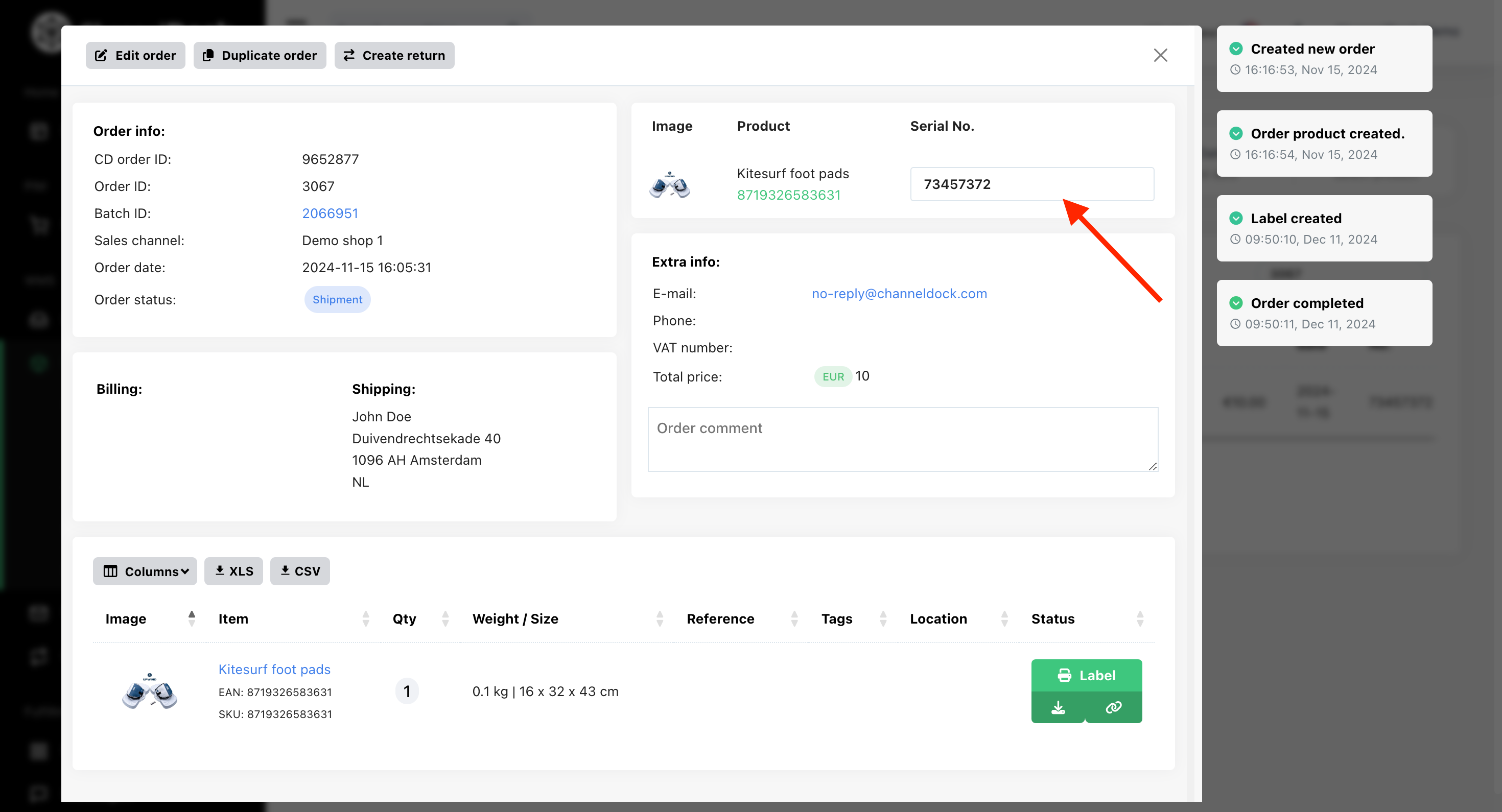
Once the serial numbers are disconnected, the return product can be restocked to the desired stock location. The stock movement is logged in the inventory log as a return_restocked event.
Important: If no serial numbers were ever connected to the order product, the return simply restocks the quantity without the serial-number step.
Searching by serial number
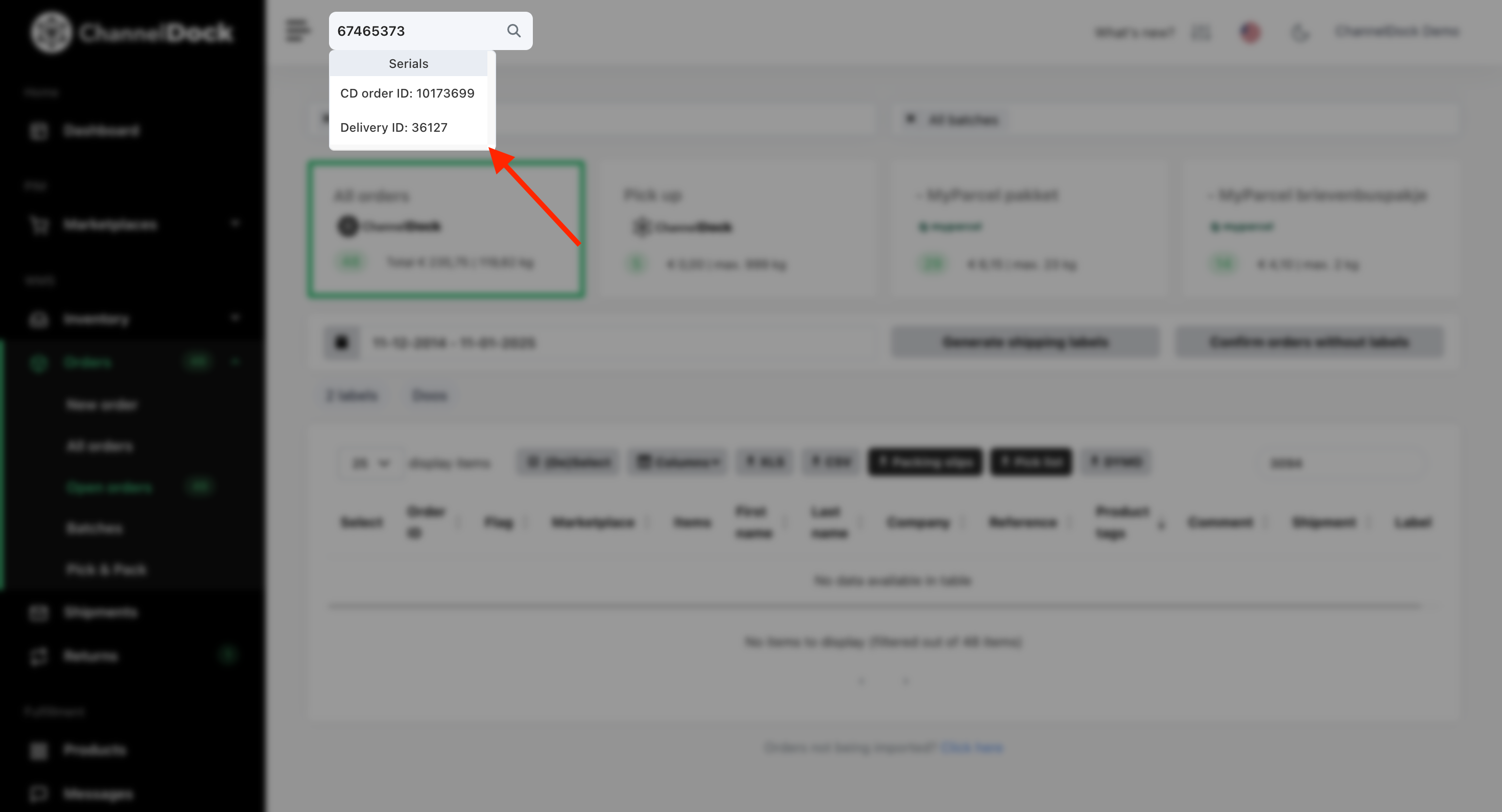
Use the Search Everything bar (Ctrl+Space) to locate a serial number. The results show both the delivery the serial number was received on, and — if the serial number has been shipped — the order it is linked to.
Serial numbers on labels and in exports
Serial numbers are printed on shipment labels and packing slips, so the correct unit can always be identified at the customer’s door or at the packing bench. Each serial number appears as a barcode line item on the label.
Serial numbers are also included in the following exports and reports:
- Order history export — a pipe-separated
serial_numberscolumn per order line. - Shipment history export — both label-level and item-level serials.
- Product export — the
require_serial_numberflag per product.
Per-product traceability log
Every product that uses serial numbers has a dedicated Traceability view inside the inventory log on the product page. Filter the inventory log by the Traceability category to see a table of every item ever recorded for that product, with columns for order ID, delivery ID, serial number, batch ID, expiration date and action. You can search this table by serial number, batch ID, expiration date, or order ID to instantly find where a specific unit is — or was.
Deleting traceability data for a product is logged as a serial_number_deleted event in the inventory log.
Serial numbers on the native app
For fulfillment centers, serial numbers can be scanned via the ChannelDock native app. The app uses the same regex validation, cross-product checks and duplicate prevention as the web application, so scanned serial numbers are validated against the product’s regex pattern before being accepted. The native app also blocks fulfilling an order line until the number of scanned serial numbers matches the ordered quantity.
Summary
| Where | What happens |
|---|---|
| Product settings | Enable serial numbers and set an optional regex pattern |
| Deliveries | Pre-register serial numbers (plus expiration date & batch ID) on receipt |
| Pick & pack | Scan serial numbers to link items to the order; duplicates and cross-product mismatches are blocked |
| Orders | View shipped serial numbers in the order details and order list |
| Returns | Verify returned serial numbers, disconnect them from the order, and restock |
| Labels & exports | Serial numbers are printed on labels and included in order/shipment/product exports |
| Traceability log | Per-product history of every serial number, searchable by serial, batch or order |
| Search Everything | Find the delivery and order a serial number belongs to |
| Native app | Scan serial numbers on the go with the same validation and fulfillment checks |
By implementing serial numbers, you’ll be able to better manage your products and orders, make returns verifiable, print the right unit on every label, and keep an accurate, per-unit track of your inventory.
Was this helpful?